
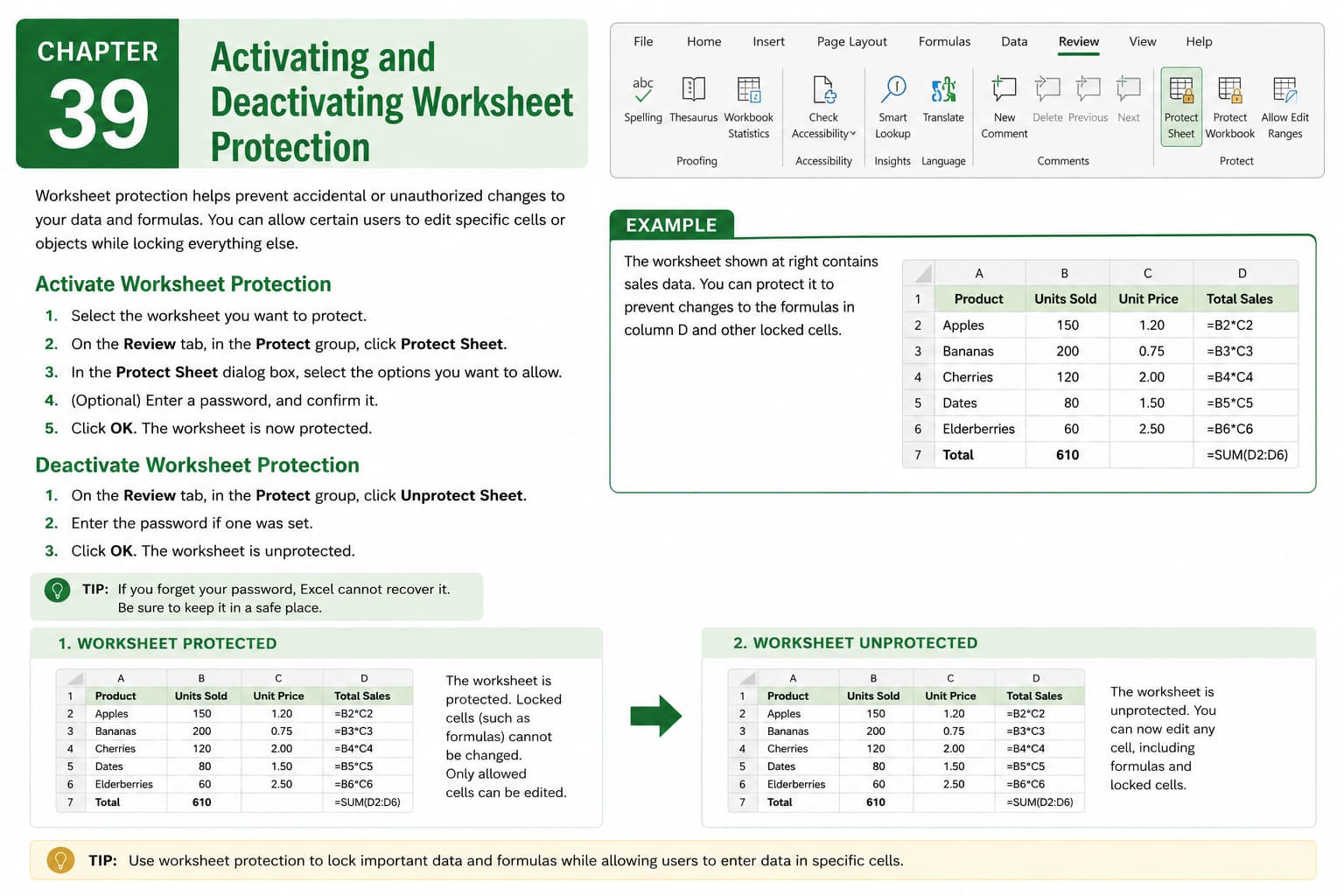
Chapter 39: Activating and Deactivating Worksheet Protection
Chapter Description
In this chapter, you’ll learn how to activate and deactivate worksheet protection in Microsoft Excel to safeguard important data and prevent unauthorized changes. Worksheet protection allows you to control which parts of a worksheet users can edit while keeping formulas, formatting, and critical information secure.
You’ll explore how to protect a worksheet with or without a password, customize editing permissions, unlock specific cells for user input, and remove protection when updates are required. You’ll also learn best practices for managing protected worksheets in shared workbooks.
This lesson is especially useful for creating templates, financial reports, attendance sheets, invoices, dashboards, and shared worksheets where data integrity is essential.
What You’ll Learn
-
Understanding worksheet protection in Microsoft Excel
-
Protecting a worksheet with a password
-
Protecting a worksheet without a password
-
Allowing users to edit specific cells
-
Unlocking cells before applying protection
-
Removing worksheet protection
-
Managing editing permissions
-
Best practices for protecting worksheet data
Learning Outcome
By the end of this chapter, you’ll be able to confidently activate and deactivate worksheet protection in Microsoft Excel, ensuring important data remains secure while allowing controlled editing where needed. You’ll be able to create reliable and protected worksheets for both personal and professional use.