
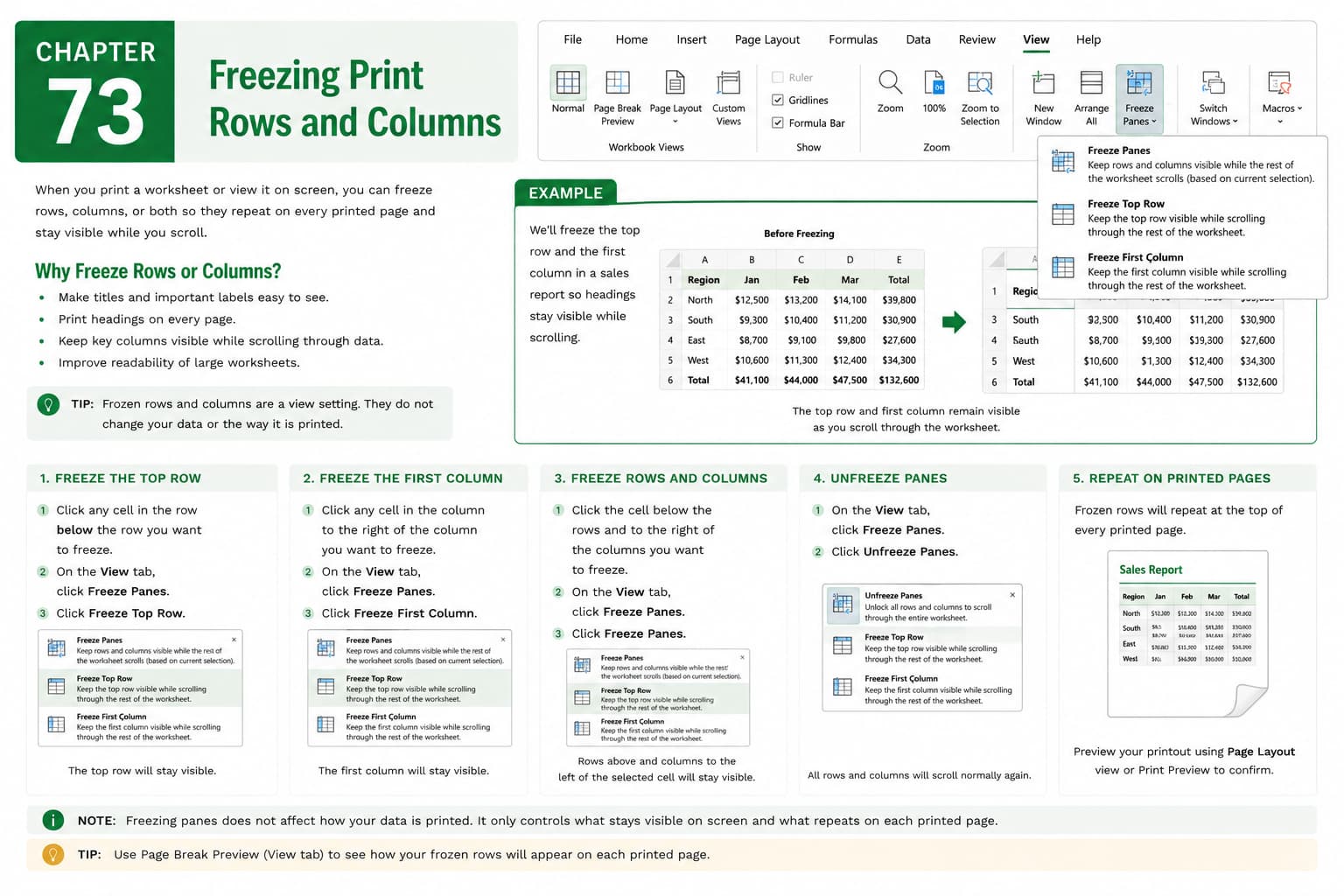
Chapter 73: Freezing Print Rows and Columns
Chapter Description
In this chapter, you’ll learn how to freeze print rows and columns in Microsoft Excel by setting Print Titles, ensuring that important row and column headings appear on every printed page. This feature improves the readability of multi-page worksheets by keeping labels visible throughout the printed document.
You’ll explore how to repeat specific rows at the top of each page, repeat columns on the left side of every page, preview the printed output, and modify or remove print title settings. You’ll also learn the difference between Freeze Panes for on-screen viewing and Print Titles for printing.
This lesson is especially useful for printing financial reports, invoices, inventory lists, attendance records, sales reports, and other large worksheets that span multiple pages.
What You’ll Learn
- Understanding Print Titles in Microsoft Excel
- Repeating header rows on every printed page
- Repeating columns on the left side of each page
- Setting and modifying Print Titles
- Previewing worksheets before printing
- Removing repeated print rows and columns
- Understanding the difference between Freeze Panes and Print Titles
- Best practices for printing large worksheets
Learning Outcome
By the end of this chapter, you’ll be able to confidently set print rows and columns in Microsoft Excel so that important headings appear on every printed page. You’ll create professional, easy-to-read printed worksheets that are well-organized and simple to interpret.