

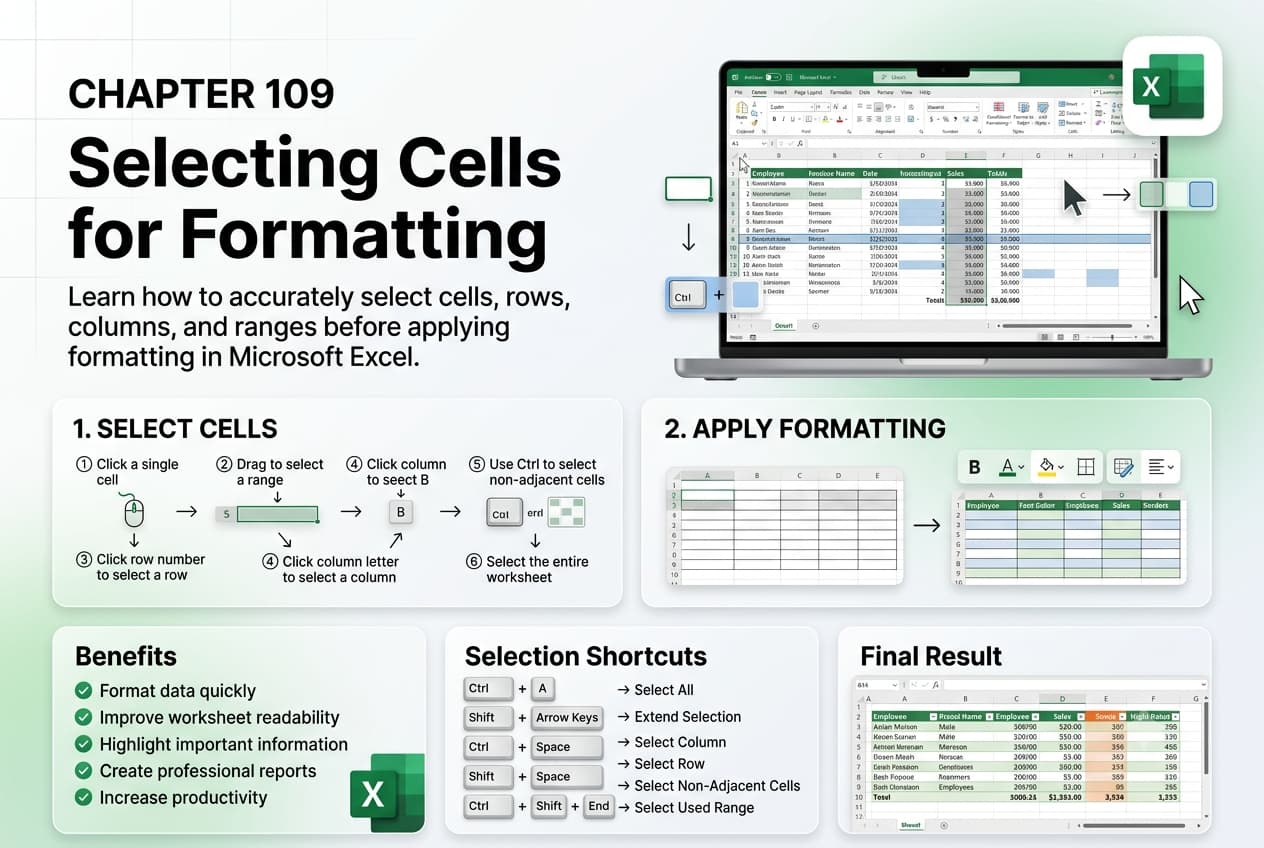
Chapter 109: Selecting Cells for Formatting
Chapter Description
In this chapter, you’ll learn how to select cells for formatting in Microsoft Excel to efficiently apply formatting changes to the appropriate data. Selecting the correct cells is the first step in creating organized, consistent, and professional-looking worksheets. Excel provides several selection techniques that help you work quickly with individual cells, ranges, rows, columns, and non-adjacent cells.
You’ll explore different methods for selecting cells using the mouse, keyboard shortcuts, the Name Box, and the Go To feature. You’ll also learn how to select entire worksheets, multiple ranges, and visible cells only, making it easier to format large datasets accurately and efficiently.
This lesson is especially useful for formatting reports, financial statements, data tables, dashboards, invoices, and other worksheets that require consistent styling.
What You’ll Learn
- Understanding cell selection in Microsoft Excel
- Selecting individual cells and cell ranges
- Selecting entire rows, columns, and worksheets
- Selecting non-adjacent cells and multiple ranges
- Using keyboard shortcuts for faster selection
- Using the Name Box and Go To feature for quick selection
- Selecting visible cells in filtered data
- Best practices for efficient worksheet formatting
Learning Outcome
By the end of this chapter, you’ll be able to confidently select cells, ranges, rows, and columns in Microsoft Excel for formatting. You’ll apply formatting more efficiently, maintain consistency across your worksheets, and improve the overall appearance and readability of your spreadsheets.