
Chapter 19: How to Enter Numbers and Retain Leading Zeros
Chapter Description
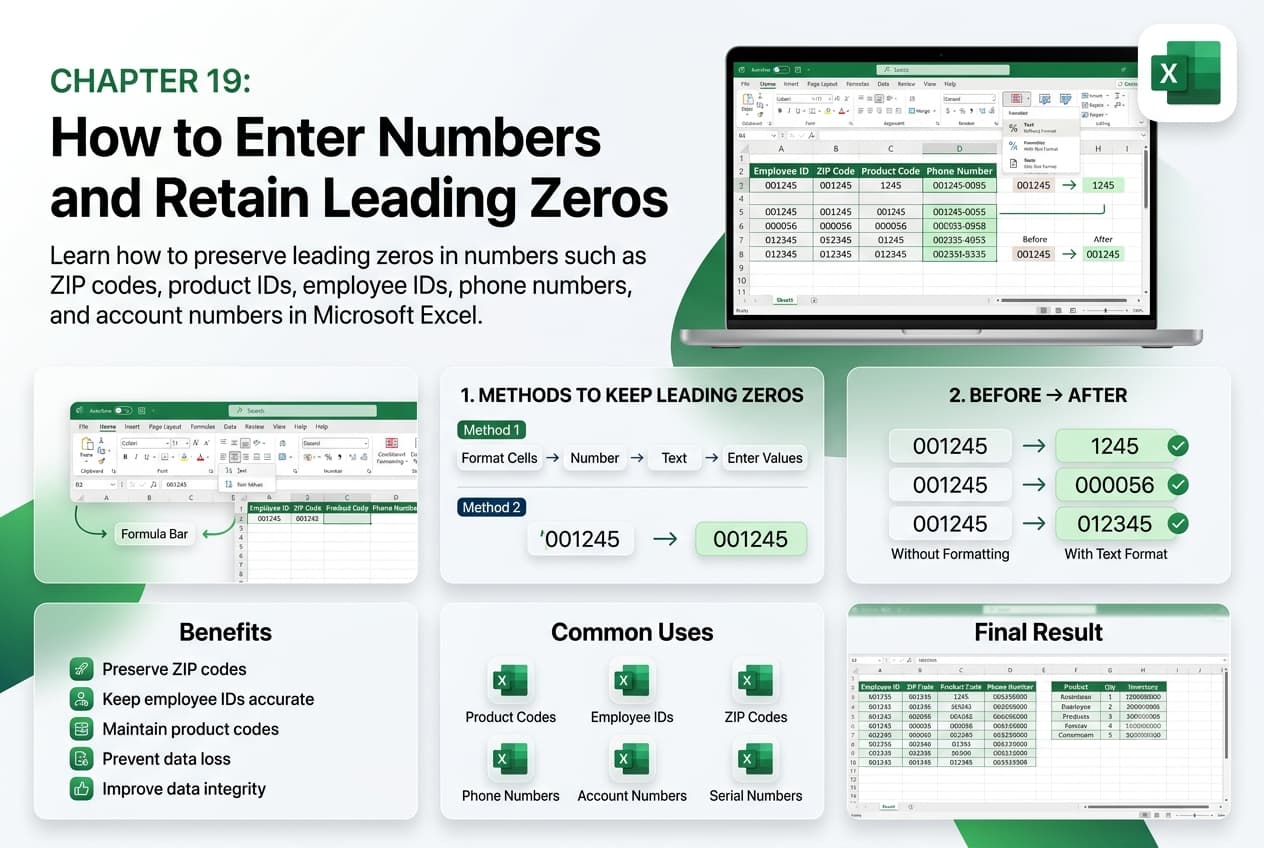
In this chapter, you’ll learn how to enter numbers in Microsoft Excel while retaining leading zeros. By default, Excel removes leading zeros from numeric entries because it treats them as numerical values. However, for data such as ZIP codes, postal codes, employee IDs, product codes, invoice numbers, account numbers, and phone numbers, preserving leading zeros is essential for maintaining data accuracy and consistency.
You’ll explore different methods for retaining leading zeros, including formatting cells as Text, applying Custom Number Formats, and using an apostrophe before the number. You’ll also learn when each method is most appropriate and how to avoid common formatting mistakes during data entry and import.
This lesson is especially useful for managing identification numbers, customer records, inventory systems, postal codes, serial numbers, and business databases.
What You’ll Learn
-
Understanding why Excel removes leading zeros
-
Entering numbers while retaining leading zeros
-
Formatting cells as Text before data entry
-
Using Custom Number Formats to display leading zeros
-
Using an apostrophe to preserve leading zeros
-
Importing data without losing leading zeros
-
Choosing the appropriate method for different data types
-
Best practices for maintaining accurate numeric identifiers
Learning Outcome
By the end of this chapter, you’ll be able to confidently enter numbers while retaining leading zeros in Microsoft Excel. You’ll preserve important numeric identifiers, improve data accuracy, and ensure your worksheets display information correctly for business, administrative, and personal applications.