
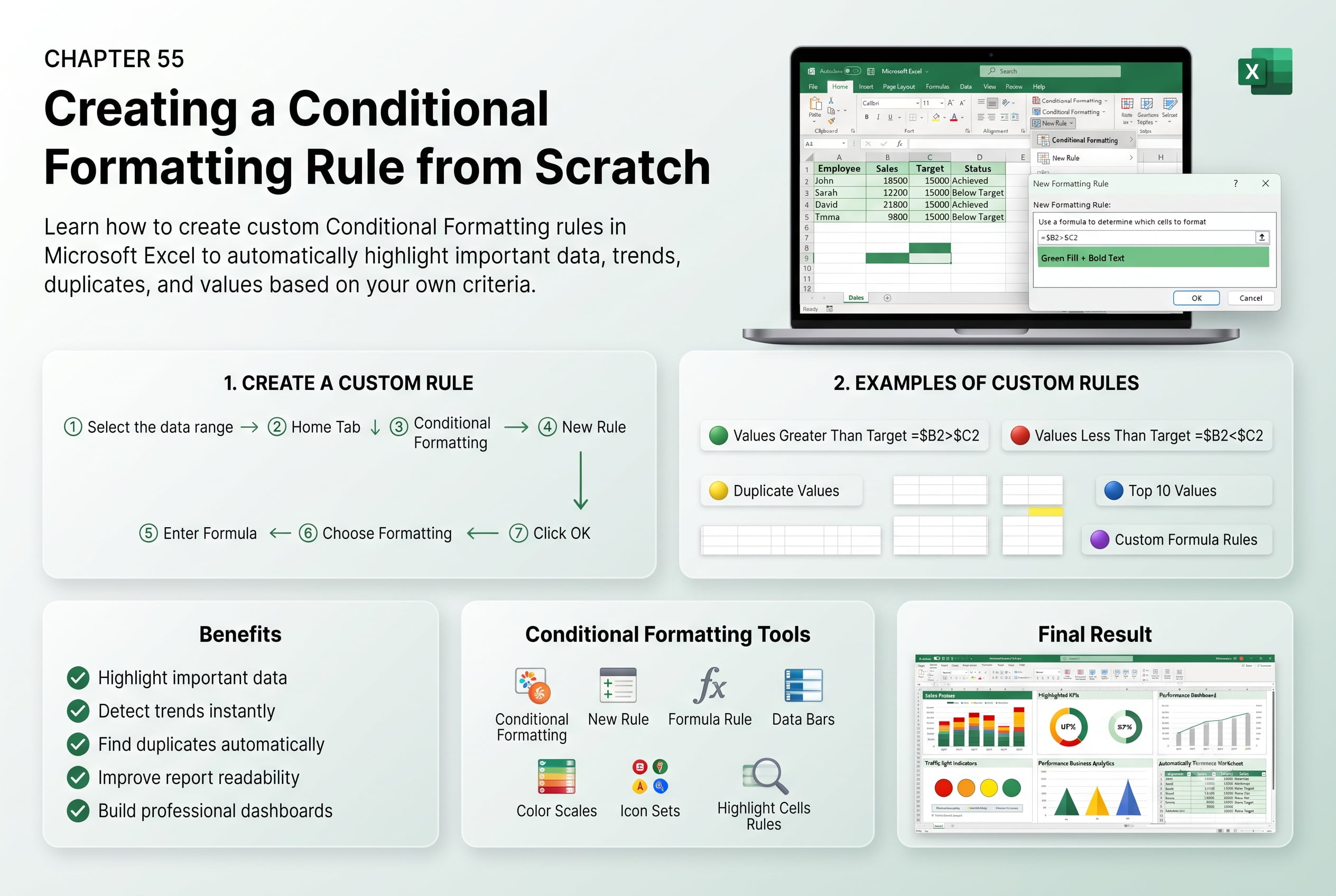
Chapter 55: Creating a Conditional Formatting Rule from Scratch
Chapter Description
In this chapter, you’ll learn how to create a Conditional Formatting rule from scratch in Microsoft Excel to automatically format cells based on custom conditions. Unlike built-in formatting rules, custom rules give you complete control over how data is highlighted, allowing you to create personalized visual indicators that meet your specific reporting and analysis requirements.
You’ll explore how to build custom rules using formulas, define formatting conditions based on cell values, text, dates, and logical expressions, and apply multiple rules to the same data range. You’ll also learn how to edit, prioritize, and remove conditional formatting rules, ensuring your worksheets remain organized and easy to interpret.
This lesson is especially useful for creating financial reports, sales dashboards, inventory trackers, project schedules, performance scorecards, attendance records, and business analytics worksheets.
What You’ll Learn
- Understanding custom Conditional Formatting rules in Microsoft Excel
- Creating a Conditional Formatting rule from scratch
- Using formulas to define custom formatting conditions
- Formatting cells based on values, text, dates, and logical criteria
- Applying multiple Conditional Formatting rules
- Managing rule priority and resolving rule conflicts
- Editing and deleting existing Conditional Formatting rules
- Best practices for creating effective and meaningful data visualizations
Learning Outcome
By the end of this chapter, you’ll be able to confidently create custom Conditional Formatting rules in Microsoft Excel using formulas and advanced criteria. You’ll highlight important data automatically, improve worksheet readability, and build dynamic spreadsheets that provide valuable visual insights for analysis and decision-making.