

Chapter 20: Inserting the Date and Time as Static or Dynamic Values
Chapter Description
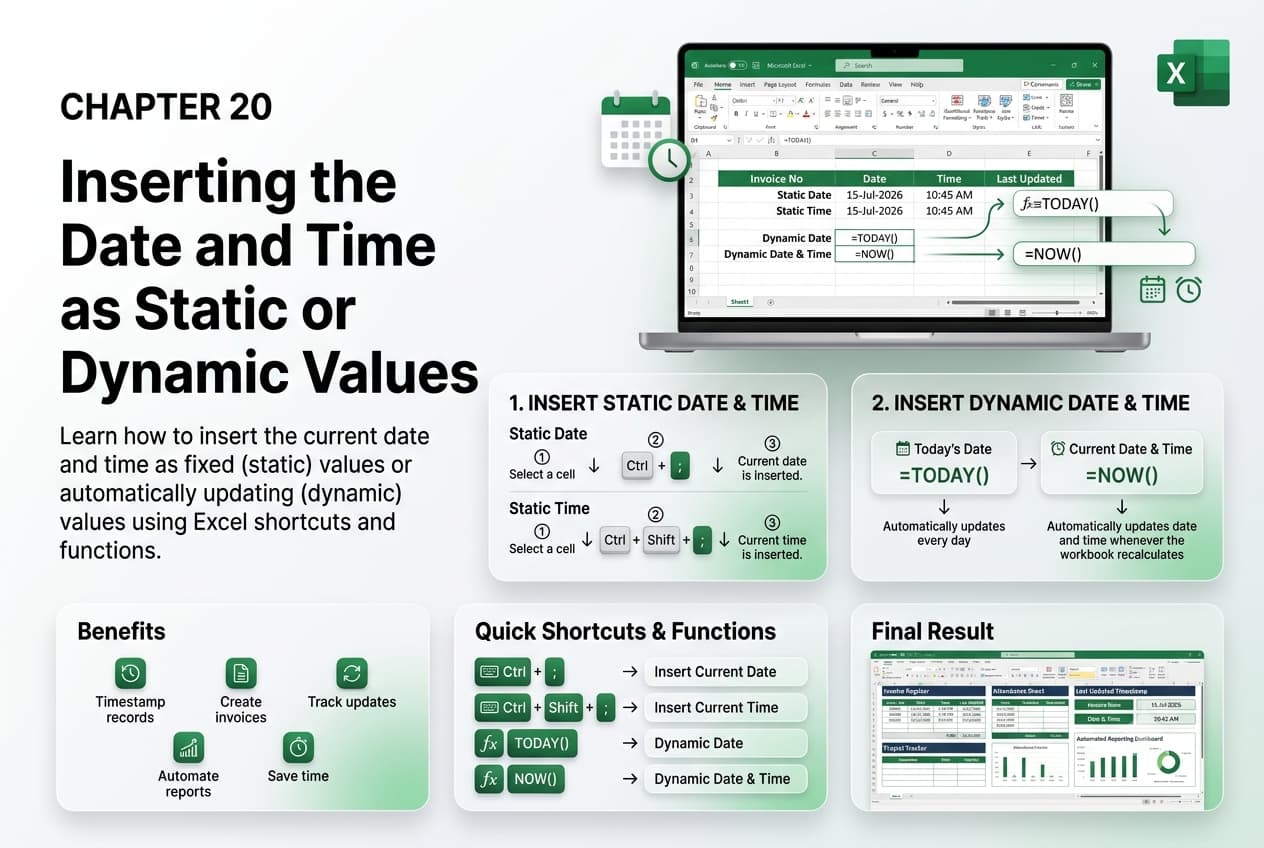
In this chapter, you’ll learn how to insert the current date and time as static or dynamic values in Microsoft Excel. Dates and times are essential for tracking records, creating schedules, maintaining logs, and generating reports. Understanding the difference between static and dynamic entries helps ensure your worksheets display information accurately based on your specific needs.
You’ll explore how to insert fixed dates and times using keyboard shortcuts, use the TODAY() and NOW() functions to display automatically updating values, and apply appropriate date and time formats. You’ll also learn when to use static values instead of dynamic formulas and how to prevent automatic updates when necessary.
This lesson is especially useful for maintaining attendance records, timesheets, invoices, project schedules, financial reports, task trackers, and audit logs.
What You’ll Learn
-
Understanding static and dynamic date and time values in Microsoft Excel
-
Inserting the current date using keyboard shortcuts
-
Inserting the current time using keyboard shortcuts
-
Using the TODAY() function for dynamic dates
-
Using the NOW() function for dynamic date and time
-
Formatting dates and times for different purposes
-
Choosing between static and dynamic values
-
Best practices for working with date and time entries
Learning Outcome
By the end of this chapter, you’ll be able to confidently insert and manage static and dynamic date and time values in Microsoft Excel. You’ll understand when to use keyboard shortcuts or built-in functions, ensuring your worksheets display accurate and meaningful date and time information for a variety of personal and professional applications.