Chapter 71: Finding and Replacing Formats
Chapter Description
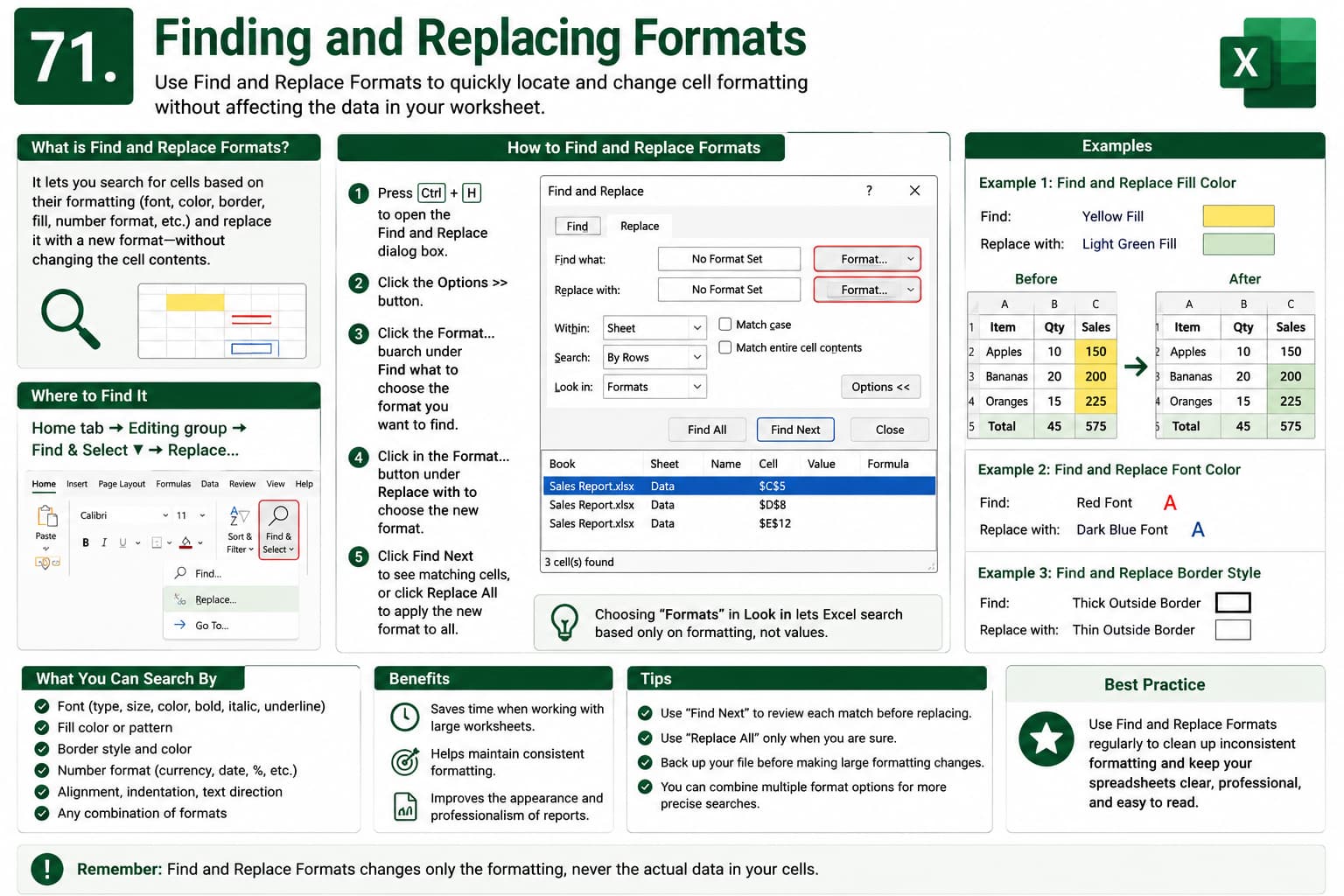
In this chapter, you’ll learn how to use Find and Replace Formats in Microsoft Excel to quickly locate and modify cells based on their formatting instead of their contents. This powerful feature allows you to search for specific font styles, colors, borders, number formats, fills, and other formatting attributes, making it easy to standardize the appearance of large worksheets.
You’ll also discover how to replace one formatting style with another without affecting the underlying data, helping you maintain consistency and improve the visual quality of your spreadsheets.
This lesson is especially useful for cleaning up reports, formatting business documents, preparing financial statements, and managing large datasets with inconsistent formatting.
What You’ll Learn
-
Understanding the Find and Replace Formats feature
-
Finding cells based on formatting attributes
-
Replacing one cell format with another
-
Searching by font, fill color, borders, and number formats
-
Using Find and Replace without changing cell values
-
Standardizing worksheet formatting
-
Saving time when editing large spreadsheets
-
Best practices for managing consistent formatting
Learning Outcome
By the end of this chapter, you’ll be able to confidently use Find and Replace Formats in Microsoft Excel to locate and update formatting across your worksheets. You’ll improve consistency, save time when editing large spreadsheets, and create professional-looking documents with uniform formatting.

