Chapter 72: Fixing On-Screen Rows and Columns
Chapter Description
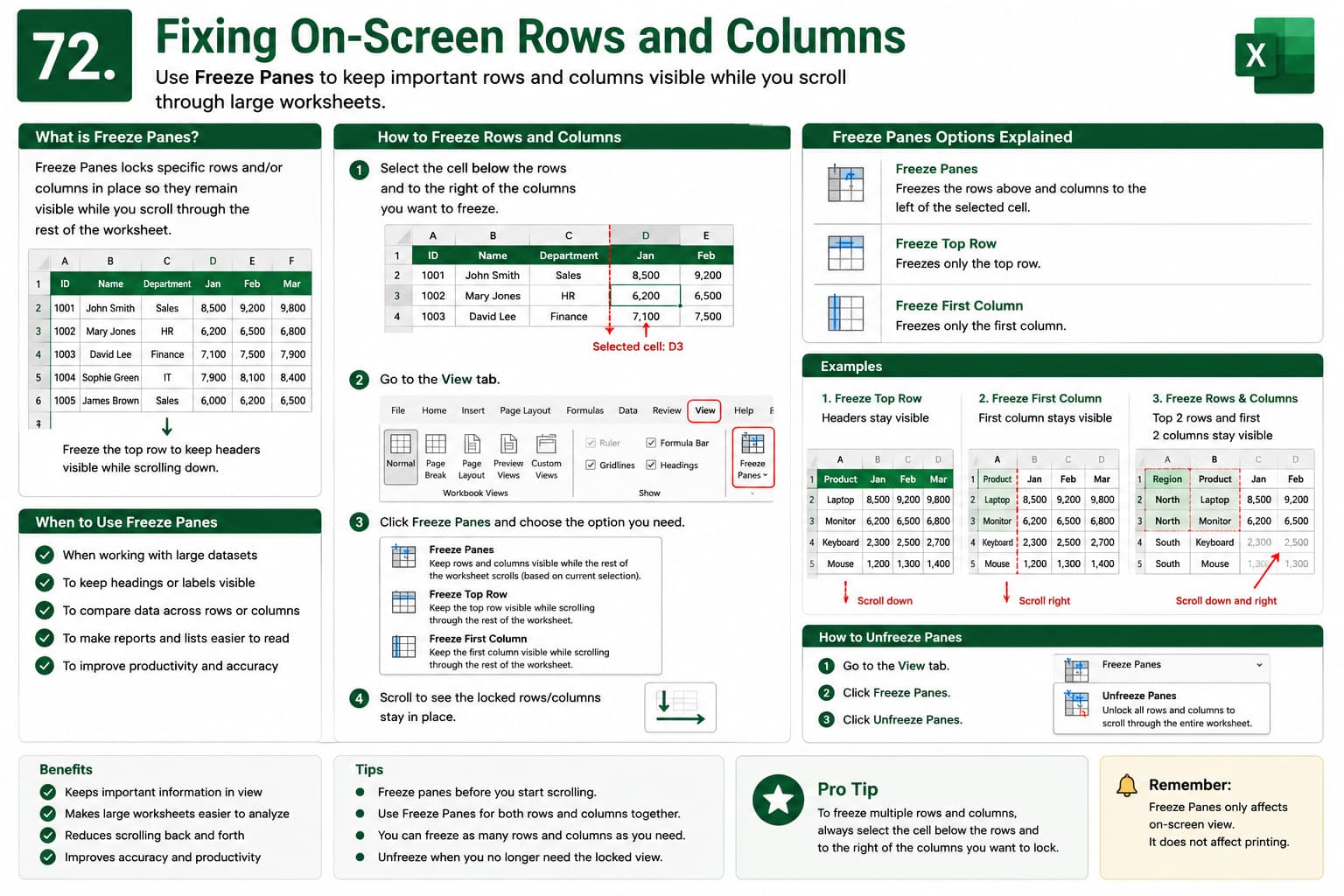
In this chapter, you’ll learn how to use Freeze Panes in Microsoft Excel to keep important rows and columns visible while scrolling through large worksheets. This feature allows you to lock header rows, first columns, or multiple rows and columns, making it easier to read, compare, and analyze data without losing sight of key information.
You’ll also explore the different Freeze Panes options, understand when to use each one, and learn how to unfreeze rows and columns when they’re no longer needed.
This lesson is especially useful for working with large datasets, financial reports, employee records, inventory lists, dashboards, and any spreadsheet that requires constant reference to headings or labels.
What You’ll Learn
-
Understanding the Freeze Panes feature in Microsoft Excel
-
Freezing the top row
-
Freezing the first column
-
Freezing multiple rows and columns simultaneously
-
Unfreezing panes when needed
-
Navigating large worksheets more efficiently
-
Choosing the right Freeze Panes option for different scenarios
-
Best practices for improving worksheet readability
Learning Outcome
By the end of this chapter, you’ll be able to confidently use Freeze Panes in Microsoft Excel to keep important rows and columns visible while navigating large worksheets. You’ll improve data analysis, increase productivity, and create spreadsheets that are easier to read and manage.

